

Blog

How to
Find & Use Multimodal Search Data in GSC (Step-by-Step with Screenshots)
Introduction Your customers are no longer just typing their
searches. They point a camera at a product,

Introduction
Your customers are no longer just typing their searches. They point a camera at a product, circle something on their screen, or upload a photo and ask Google what it is.
Until recently, you couldn’t see this traffic in Google Search Console. Now you can. This guide shows you where to find multimodal search data in GSC, how to read it, and what to fix based on what it tells you.
The 2026 GSC Shift: What Changed?
On 24 September 2026, Google began rolling out a new Multimodal search type, under Web, in the Search Console Performance report.
It shows how people find your site when they search with an image instead of, or as well as, text. That includes searches from:
- Google Lens
- Circle to Search on Android
- Image uploads made directly in Google Search
- Chrome’s “Search this image” right-click option
Why does this matter? Visual searches used to be mixed in with your other traffic, so you couldn’t tell which pages and images were winning them. Now you can measure this traffic separately and act on it. That’s especially useful for ecommerce, local businesses, and any site with product photos.
Step-by-Step: Finding the Multimodal Filter in GSC
It takes less than a minute to find.
1. Open Search Console and select your property.
2.Go to Performance → Search results in the left menu.
3.Click the “Search type” filter in the filter bar at the top of the report.
4.On the Filter tab, select Multimodal under Web (it’s marked “New”), then click Apply.
5.Set your date range. Choose Custom and start from 24 September 2026, when the data begins. The filter bar now reads “Search type: Multimodal.”
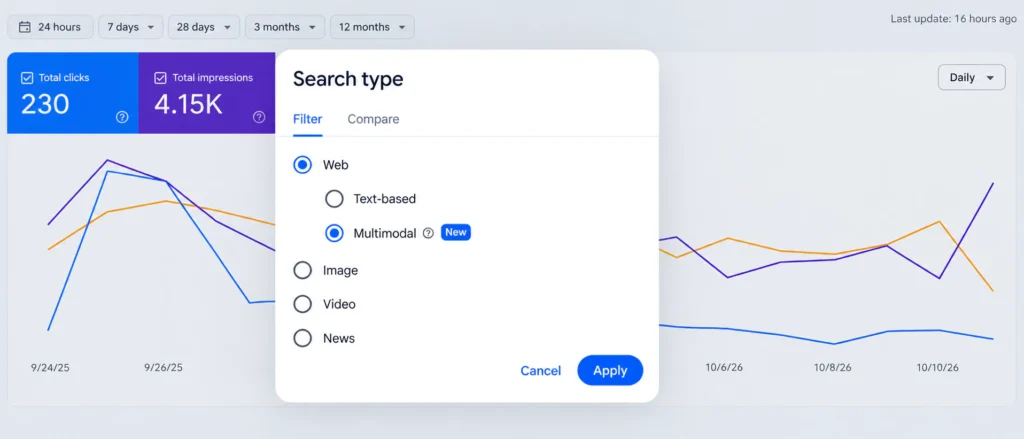
Want to see visual and typed searches side by side? Open the Compare tab in the same window and compare Text-based with Multimodal.
Tip: If the report is empty, your site may get little visual search traffic yet, or Googlebot may not be able to crawl your images. The diagnostic section below covers both.
How to Establish Your Baseline (The 4-Week Rule)
Before you change anything, record where you’re starting from.
- At the top of the report, turn on Total clicks, Total impressions, Average CTR and Average position.
- Look at at least four complete weeks of data before drawing conclusions. A single week can be skewed by a sale, a holiday or a viral post.
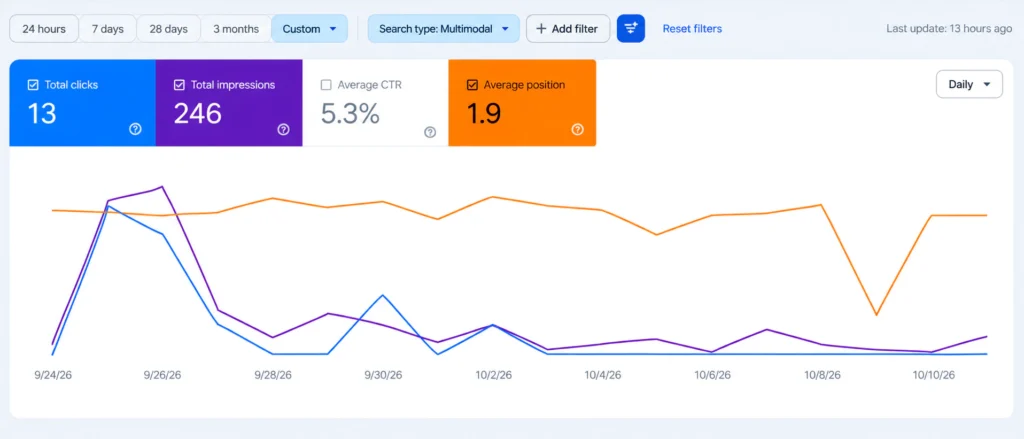
Data only starts from the rollout on 24 September 2026. If you have less than four full weeks, note your numbers now, export them to a sheet, and review them once a full month is available.
Reading the Data: Queries, Pages, Countries and Devices
Queries tab: Visual searches produce different queries from typed ones. Look for patterns such as “what is this,” a product plus a colour, or a brand plus a model number.
Pages tab (the most important): This tells you which product pages, blog posts and landing pages are winning visual clicks. Sort by clicks, then by impressions. Pages with high impressions are your biggest opportunities.
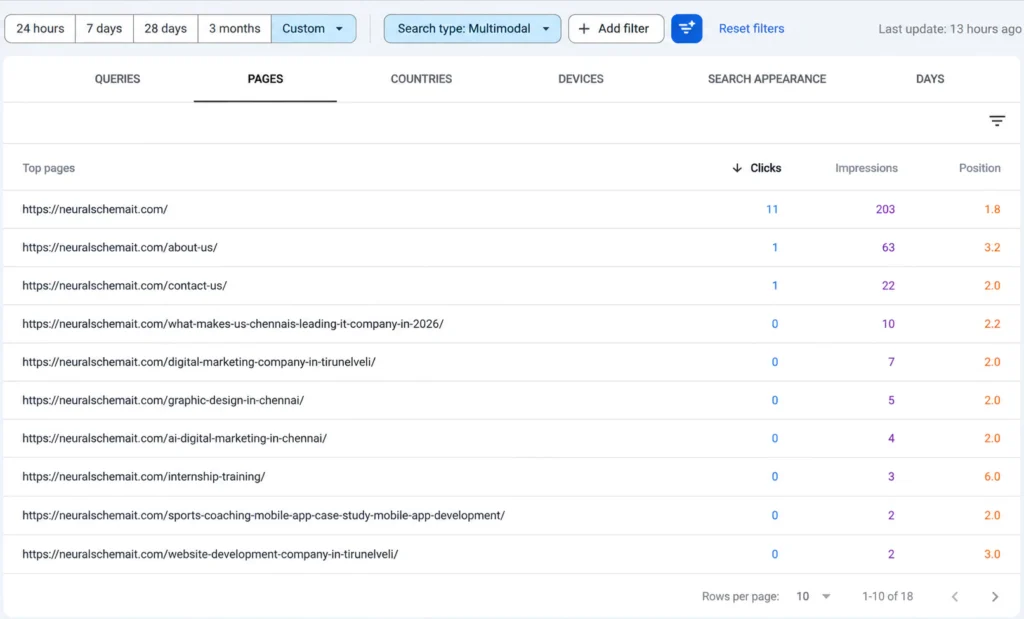
Devices and Countries tabs: Expect multimodal traffic to lean heavily toward mobile, because most visual searches start with a phone camera. The Countries tab shows where that demand comes from.
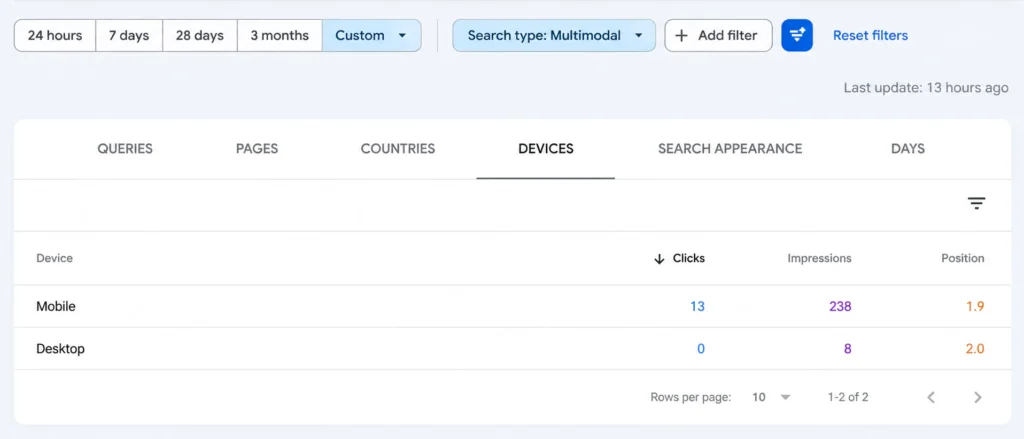
Diagnostic Action Plan: What Your Data Is Telling You
Here’s what to do based on what you actually see in the report.
What you see | What it usually means | What to do |
|---|---|---|
High impressions, flat clicks | Your image matches the search, but the result isn't persuasive enough to click | Use a sharper, clearer image, add Product schema with price and availability, and tighten your title |
90%+ of traffic from mobile | Visitors arrive on phones, so mobile experience decides whether they stay | Audit mobile page speed, and make sure key images aren't CSS backgrounds, which Google doesn't index as images |
Important pages with no multimodal data | Google may not be able to find or crawl your images | Check robots.txt, CDN and hotlink rules, and lazy-loading scripts that hide images from Googlebot |
Visual traffic landing on your homepage | Visitors can't find the exact item they searched for | Point images to dedicated product or category pages |
Quick Image SEO Fixes to Apply
Whatever your data shows, these fixes help Google understand and surface your images:
- Use standard HTML images. Use <img> tags with a crawlable src, plus srcset or <picture> for responsive sizes.
- Submit an image sitemap so Google finds new images faster.
- Name files clearly. Use blue-running-shoes-men.jpg, not IMG_4821.jpg.
- Write natural alt text that describes the image without stuffing keywords.
- Place images near relevant text, such as captions, specs and descriptions.
- Use original, high-quality photos. Stock images that appear on thousands of sites rarely win visual searches.
- Add structured data such as Product, ImageObject or LocalBusiness, and set a preferred preview image with og:image.
Frequently Asked Questions
Go to Performance → Search results, click “Search type,” and select Multimodal under Web.
Yes. It covers Google Lens, Circle to Search on Android, direct image uploads, and Chrome’s right-click image search.
Your site may get little visual search traffic yet, or your images may be blocked from crawling. Check robots.txt, your CDN settings and lazy-loading.
The Image search type shows traffic from Google Images results. Multimodal shows searches where the person used an image as their query.
Conclusion
Multimodal search data finally shows you how people find your site through their cameras. Find the filter, set a four-week baseline, read your Pages and Devices data, and fix whatever the diagnostics point to.
Need help? As an SEO company in Chennai, we audit your images and Search Console data to find the visual search traffic you’re missing. Get your image SEO audit today.
Recent Posts
- How to Choose an IT Company in Chennai: A 6-Point Checklist
- How to Find & Use Multimodal Search Data in GSC (Step-by-Step with Screenshots)
- Google Business Profile Post Views Are Back: What the Number Means for Your Business
- Website or Mobile App First A Practical Guide for Growing Businesses
- 10 Best Mobile App Development Companies in Chennai 2026 Guide